Color in Digital Art: Palettes, RGB and CMYK
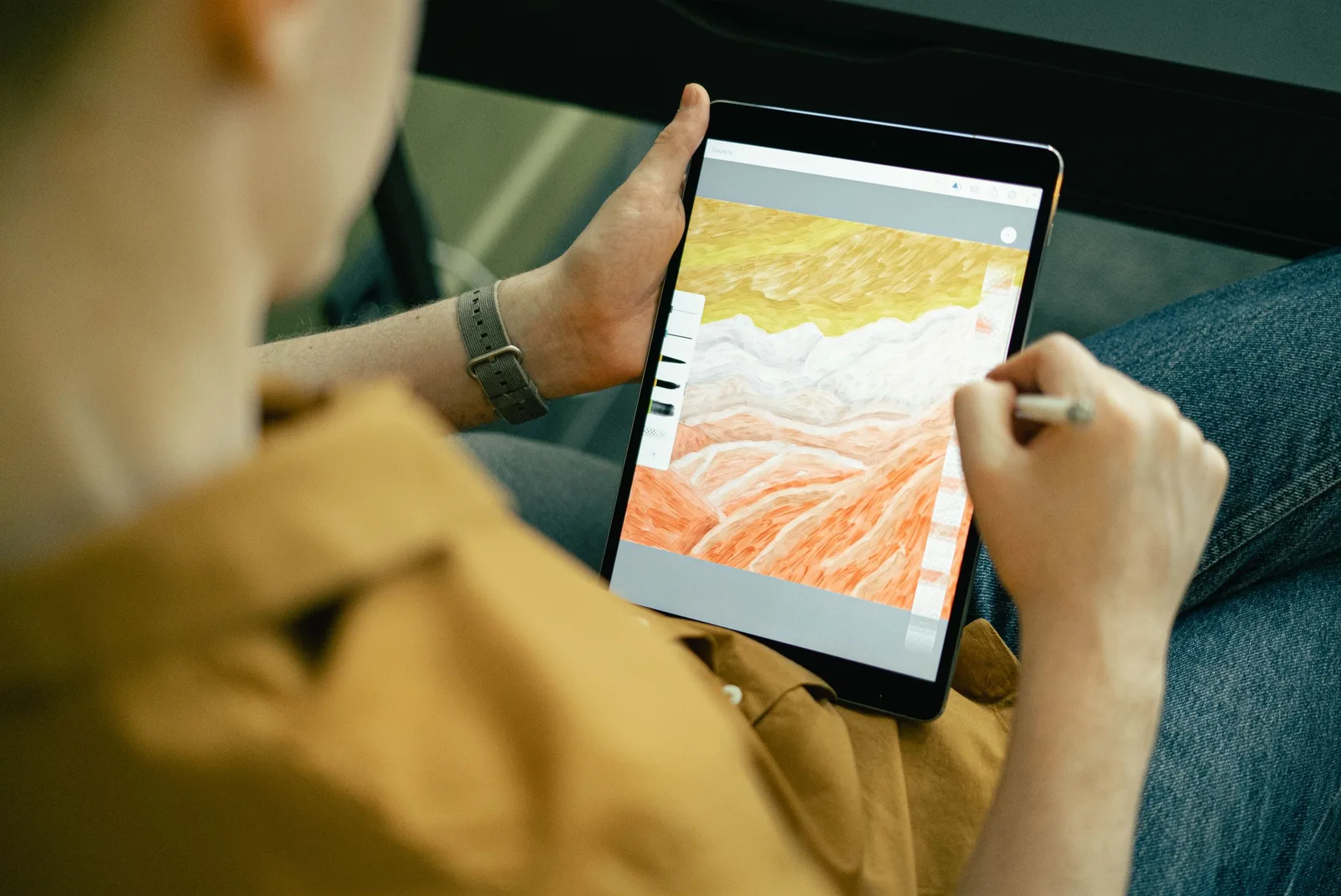
In digital art, color lives in two worlds: on screen it is made of light, on paper of ink. That is where the two color models, RGB and CMYK, come from, along with the age-old question of why a printout never quite matches the monitor. Below is how to build a palette with a color wheel, how RGB and CMYK differ and how to prepare a drawing for screen and for print.
The Color Wheel and Palettes
A color wheel arranges hues in a circle and shows how primary, secondary and tertiary colors relate; Isaac Newton drew the first one in his book Opticks. The wheel makes it easy to build a palette:
- neighboring colors, such as red, orange and yellow, give a calm, unified look;
- opposite, or complementary, colors, such as red and cyan, give contrast;
- three colors spaced evenly around the wheel give a bright yet balanced combination.
Many programs include a color wheel: you pick a base color, and the program suggests matching ones.
RGB: Color on Screen
A screen mixes light in three colors: red, green and blue. This is an additive model, where all three at full strength make white and none of them makes black. Each channel usually has 256 values, from 0 to 255, which adds up to more than 16.7 million shades. Different screens show the same RGB color slightly differently.
CMYK: Color on Paper
A printer works the other way around: inks absorb part of the light bouncing off white paper. This subtractive model relies on four inks: black (called the “key”), plus cyan, magenta and yellow. Black ink saves the other three and gives even dark tones. In-between shades are built from tiny dots: magenta covering 20% of an area reads as pink.
Why a Printout Differs from the Screen
A screen gives off light, while paper only reflects it, so the brightest screen colors cannot be matched exactly in ink. If a drawing is headed for print, convert it to CMYK early, see how the colors shift and check key shades on a test print. For screens and the web, draw and save in RGB.
Color in Lessons
The course program has a separate topic, color in digital drawing: students choose a palette, mix colors and create gradients, then use all of that in their own illustrations. What else children learn in graphics lessons is covered in How Computer Graphics Develop Children’s Creative Abilities, and drawing programs are collected in Top 10 Programs for Creating Computer Graphics.
Our Computer Graphics Course
In our computer graphics course, students learn techniques for creating digital images, work with shape, color and detail and with the tools of graphics editors, and collect their work in a portfolio that can be prepared for online exhibitions and competitions. Lessons are open to students from age 7. A trial lesson costs $8: it is individual and lasts 45 minutes. More about the course is on the Computer Graphics page.


